Стас ЮрасовAI Eng
21 October 2026, 17:29
2026-10-21
How to create videos using AI directly on your computer: step-by-step instructions
Local video generation using artificial intelligence is the process of creating a dynamic video sequence from a text description or a static image directly on your PC.
Local video generation using artificial intelligence is the process of creating a dynamic video sequence from a text description or a static image directly on your PC.
We decided to dive into the world of local AI and tell you how the new generation of NVIDIA GeForce RTX 50 Series graphics cards is a game changer for content creators and opens up the possibility of creating cinematic high-resolution videos locally, for free, and completely privately.
Understanding your hardware and choosing a generation model
The main scarce resource in AI video generation is video memory (VRAM). Video frames are not processed individually, but as 3D tensors (width × height × number of frames), which requires a huge amount of memory.
Also pay attention to the support for modern FP8 and NVFP4 compression formats, which allow you to run top models without losing image quality.
The RTX 50 series graphics cards are great for these tasks, with their ultra-fast GDDR7 memory and new Tensor Cores that hardware-accelerate these formats. If you have an RTX 5070 or 5070 Ti, use the lightweight NVFP4 formats and create short videos of a few seconds with further enhancements.
RTX 5080 owners should choose models with FP8 for fast generation of full-fledged 1080p video, and on the RTX 5090 with its 32 GB of memory, you can safely run the most difficult flagship neural networks natively and without any delays.
Preparing the software environment
To work comfortably with video generation, it is better to use the ComfyUI program. It is designed as a visual constructor of blocks (nodes), which allows you to very flexibly configure the process for your RTX 50 series video card and use all its capabilities.
To get started, download the ComfyUI Portable version from the official page on GitHub and be sure to unzip it to the fastest NVMe SSD drive. This is important, because AI model files weigh from 10 to 40 GB, and a slow disk will significantly slow down the launch. Make sure you have updated your NVIDIA drivers to the latest version with support for the Blackwell architecture. After that, run the run_nvidia_gpu.bat file and check in the open console window whether the system correctly identified your video card.
Next, you should expand the program’s capabilities using ComfyUI-Manager — this is a special plugin manager that you can simply drop into the custom_nodes folder. Use it to download a few required add-ons: the VideoHelperSuite extension will help you collect individual generated frames into ready-made .mp4 video files, the Frame-Interpolation plugin will allow you to make the movement in the frame smoother using the RIFE or FILM algorithms, and special nodes like ComfyUI-GGUF will be needed to run modern heavy models like Wan2.1 or Hunyuan.
Detailed workflow (Workflow)
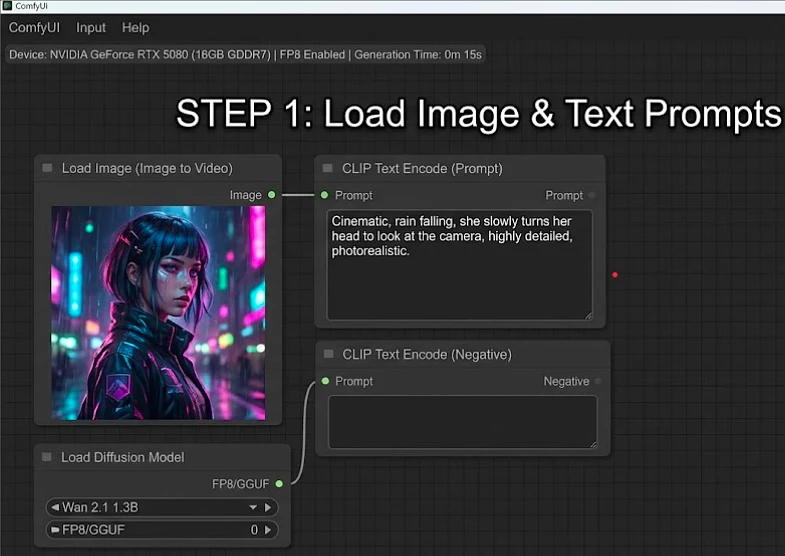
Step 1: Loading Initial Data (Image & Prompt)
Here we prepare the “fuel” for our video: we load the image we want to animate and write a text description (prompt) of what exactly should happen in the frame. The model will be guided by these two elements.
Next, let’s move on to the next stage — downloading and configuring the AI model itself (Sampler and VAE).
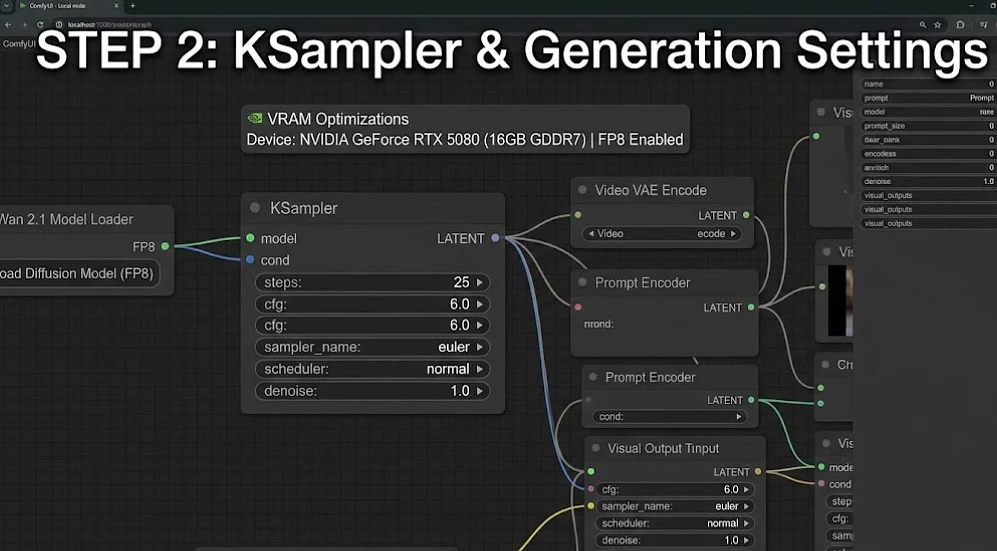
Step 2: Generation settings (KSampler)
This step is dedicated to frame processing. We connect the downloaded Wan 2.1 model (in FP8 format to save VRAM) to the main computational unit — KSampler. Here we set the number of steps to 25, choose the generation algorithm (euler), and specify the strength of the prompt following.
Thanks to optimization for Blackwell, all this voluminous calculation happens quickly and without memory overload.
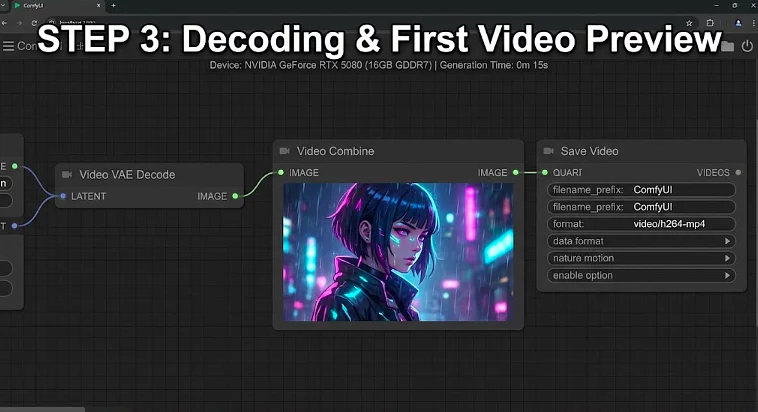
Step 3: Decoding and first viewing (Video VAE Decode)
At this stage, the mathematical “noise” from the latent space is converted into visible video. The Sampler passes the data to the Video VAE Decode node, which decodes the frames, and the Video Combine assembles them into a finished video and displays the first result in the player. The Save Video node automatically converts and writes the final .mp4 file to your SSD.
The last step left is to improve smoothness and upscale.
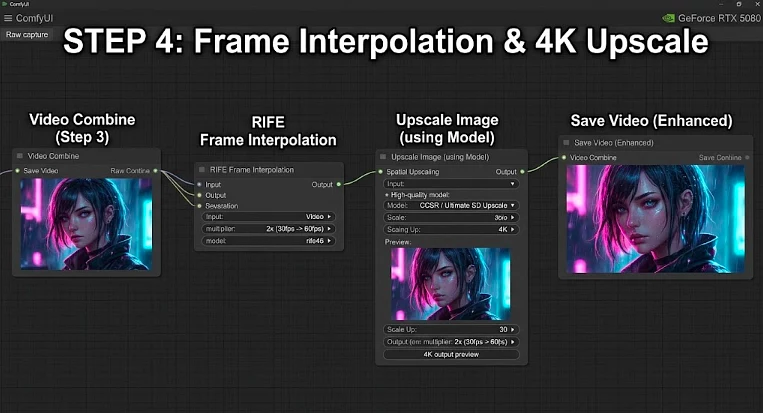
Here we transform a basic video into a smooth cinematic masterpiece. We pass the result through a RIFE node, which uses algorithms to artificially add in intermediate frames, increasing the smoothness from the basic 30fps to 60fps.
In parallel, the Upscale Image node with the CCSR / Ultimate SD Upscale model scales the resolution of each frame to ultra-high 4K, preserving and detailing textures (water droplets, lighting, small details of clothing). The final video becomes clear and smooth, ready for use.
Build your perfect AI PC with Brain
Creating a powerful workstation for local AI, as we said earlier, requires a detailed approach: it is important not only to choose the right graphics card with sufficient VRAM, but also to choose a reliable power supply, fast RAM, and an effective cooling system that can withstand long creative sessions.
Experts from Brain, one of the largest retailers of computer equipment in Ukraine, will always help you with this.
With over 25 years of experience in the market, Brain offers over 250,000 products, over 70 stores across the country, and convenient online shopping. Brain experts will help you choose the optimal PC configuration for any task and budget — from ready-made builds to individual solutions for working with local artificial intelligence.