Over 30 extensions in Google Chrome were found to be infected with malicious code for data theft. How to stay safe and what to do?
Earlier this year, cybersecurity researchers discovered dozens of attacks involving malicious updates to Google Chrome’s VPN and AI extensions. Here’s what you can do to protect yourself from hacking and data theft.
Earlier this year, cybersecurity researchers discovered dozens of attacks involving malicious updates to Google Chrome’s VPN and AI extensions. Here’s what you can do to protect yourself from hacking and data theft.
What happened?
ExtensionTotal has released a report saying it found a total of 36 Chrome extensions with data-stealing code. The affected extensions were mostly related to artificial intelligence (AI) tools and virtual private networks (VPNs), The Record reports .
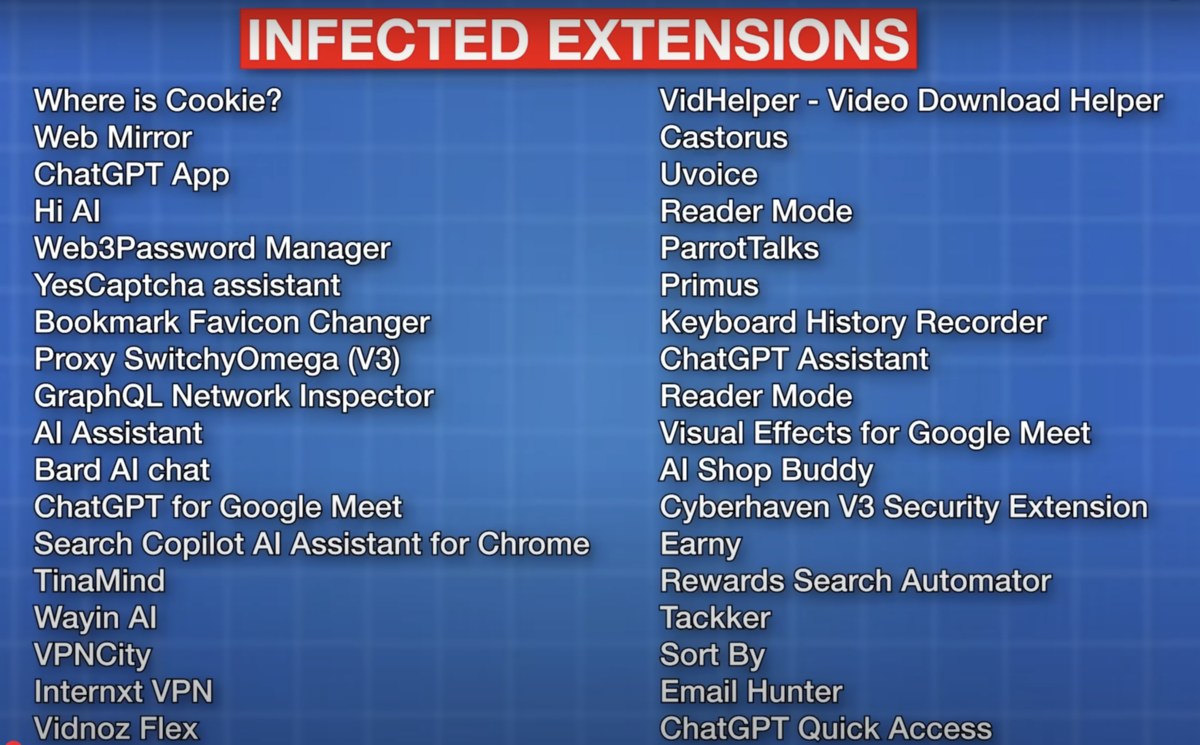
Blogger ThioJoe published a list of Chrome extensions that contain malicious code in a YouTube video. These extensions are used by about 2.6 million users.
ThioJoe YouTube screenshot
What is the threat?
Although ExtensionTotal reported that some of the affected companies have already addressed the issue by removing the compromised extensions from the store or updating them, this is not a guarantee of security. It is still not entirely clear whether all of the compromised extensions are related to the hacking threat.
According to cybersecurity researchers, extensions in Google Chrome, like those in other browsers, have deep access to user data, including authenticated sessions and sensitive information, so extensions «should not be treated lightly.» Extensions are also easy to update and often not subject to the same scrutiny as traditional software.
In particular, as Molfar specialists noted, the threat may arise if:
developer extensions can be broken,
a malicious update is downloaded on his behalf,
This update is automatically downloaded for extension users.
What to do?
Molfar shared tips on how to protect yourself, because even verified extensions can be «infected.» In particular:
Check the extensions from the list above with the ones you have installed and remove dangerous ones, as well as those you don’t use.
Enable enhanced security in chrome://settings/security.
Go to the safety settings overview and review the recommendations at chrome://settings/safetyCheck.
If necessary, reset the settings at chrome://settings/reset.
Change passwords on the resources and applications you use.
Turn on two-factor authentication. Google recommends choosing security keys.
Consider transferring your personal/work Google account to another browser, such as a portable one from another company, where you don’t have extensions.